
Self-Hosted Database API Access Configuration Guide
Overview
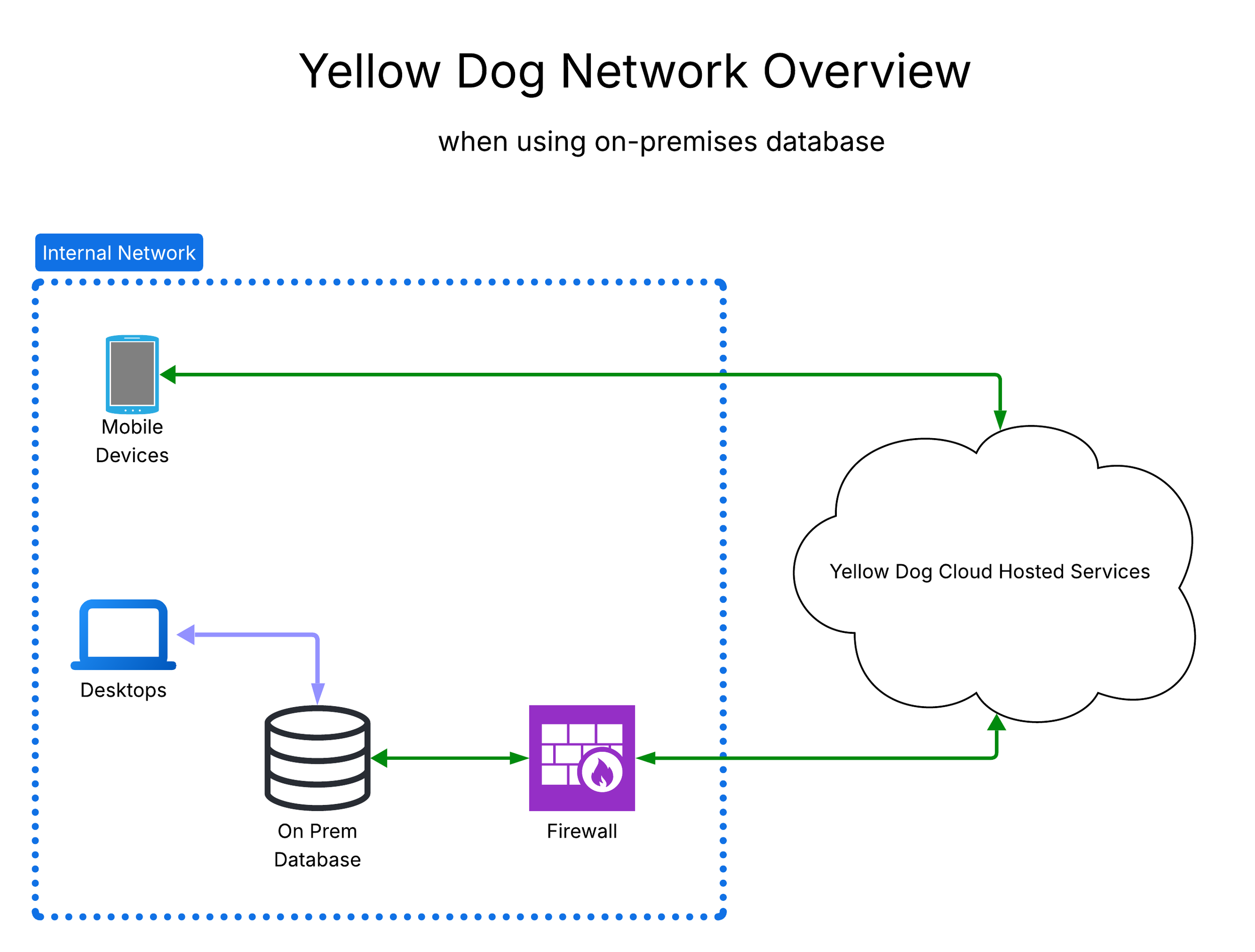
This guide is for customers who self-host their Yellow Dog Inventory database server locally (on premises) and want to use Yellow Dog mobile and web applications or enable newer application features. Customers with on-premises databases lose access to the suite of Yellow Dog mobile applications or cloud services until the Yellow Dog cloud can access the on-premises Yellow Dog database.
To enable our mobile suite, each self-hosted client must provide a secure network path for the Yellow Dog cloud to access the on premises hosted database. This document is intended to guide client IT teams for determine if this is possible, and desirable, for their specific infrastructure.
The diagram below illustrates how a self-hosted on-premises client environment connects to Yellow Dog cloud services via the internet.
Requirements Overview
Create a new SQL database user for the Yellow Dog cloud to use when connecting to the database.
Determine the IP address and port that the SQL Server hosting the Yellow Dog database is listening on.
Acquire and install an SSL Certificate on the SQL Server to enable encrypted connections.
Update the client firewall to create a route for traffic appearing at the firewall to be routed to the database server and the port it is configured to listen on.
Protect the database by blocking all traffic except specifically whitelisted IP addresses provided by Yellow Dog.
Update the Yellow Dog settings.ini for each Yellow Dog client software installation.
Client IT Team Procedure
Step 1 — Database User
Create a database user for Yellow Dog cloud to use to connect to the database. This user must have the db_owner role. Credentials will be securely shared with Yellow Dog using the secure method described in Step 2.
Step 2 — Provide Database Connection Details
Complete the information below and provide to Yellow Dog Software.
Database Server: Public DNS hostname and/or IP address
Name or IP: ________________________________________________
Database Port: The port the firewall is configured to forward to the SQL Server
Server Port: ____________
Database Name: The name of the Yellow Dog Database on the server
Name: ____________________________________________________
Database User: The name of the user created in step 1
Username: ___________________________________________________
Database User password: The password assigned in step 1
Enter at https://secrets.yellowdog.software and share the generated link only — never send the password directly
Step 3 — SSL Certificate
Configure SQL Server with an SSL certificate to enforce encrypted connections between the Yellow Dog APIs and your database. Without an SSL certificate, connections will remain unencrypted.
Step 4 — Connection String Behavior (Enterprise Networks)
When using Yellow Dog API services, the Auth service will automatically update the connection string for YDInv if the Yellow Dog database server cannot be reached. To disable this behavior, add the following line to each settings.ini file:
ConnectionStringUpdateThroughAuthAPI=false
For enterprise networks, an alternative to the above is to configure hairpinning instead. Implementation specifics are left to the client IT team.
Step 5 — Configure Firewall Port
The firewall must have a forwarding rule to forward network traffic from a specific port to the SQL server and the port it is configured to listen on. The default is to use TCP port 1433 but can be changed so this is client dependent. Whichever port is eventually used on the firewall will be provided to Yellow Dog software to use when connecting to the database. This is client configured and implemented.
Step 6 — Allowlist Yellow Dog IP Addresses
Secure access to your database by blocking all traffic for the configured port except for traffic that originates from Yellow Dog cloud services. For convenience, this list is maintained by Yellow Dog and is published as a text file at help.yellowdogsoftware.com Most modern firewalls allow importing of allow lists.
The current list of IP addresses to be whitelisted can be found on the Yellow Dog help site at
https://help.yellowdogsoftware.com/ip-addresses-for-whitelisting
⚠️ If any of the information shared in Step 2 changes, the Yellow Dog cloud and all of its services will become unavailable until the client reshares the updated information with Yellow Dog Software.